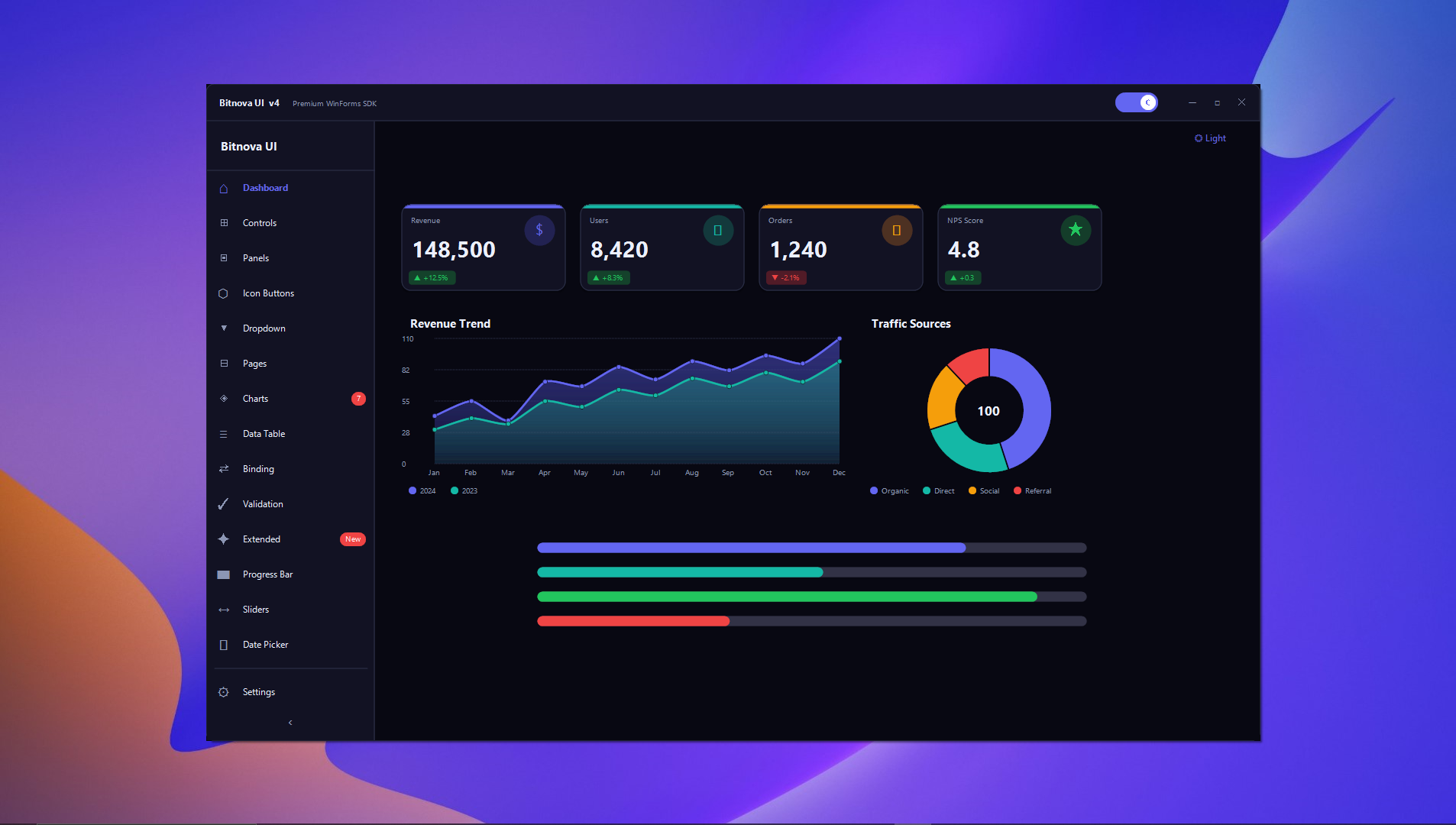
WinForms is not dead. That might be a controversial opener, but the numbers back it up — millions of enterprise applications, internal tools, and client-facing desktop software still run on WinForms today, and they aren't going anywhere.
.NET 8 and .NET 9 still ship full WinForms support. Microsoft still invests in it.
What is dead is the excuse that WinForms apps have to look terrible.
For years, the WinForms ecosystem had a real gap: you could use third-party control suites like Telerik or DevExpress, but those cost thousands per developer seat and come with a learning curve the size of a small planet. Or you could hand-paint everything in OnPaint overrides, which works great if you enjoy debugging GDI+ clipping rectangles at 11pm. There was no middle ground.
That's the gap Bitnova UI SDK was built to fill.
What Is Bitnova UI SDK?
Bitnova is a premium WinForms component library — 30+ custom controls, a full theming engine, smooth animations, a data binding system, and built-in field validation, all packaged into a single DLL that targets .NET Framework 4.6.2 through .NET 9 Windows.
It's not a framework. It's not a wrapper around something else. Every control is written from scratch against the WinForms paint model, which means they integrate seamlessly with existing forms, work in the Visual Studio designer, and don't drag in a runtime you didn't ask for.
The Code Speaks for Itself
Let's skip the marketing and look at what actually using it looks like. Here's a complete startup sequence — initialize the SDK, apply the dark theme, and override a single color token:
// One call at startup. That's it.
BitnovaCore.Initialize();

// Apply the built-in dark theme
BitnovaTheme.Apply(BitnovaTheme.Dark);

// Or match the OS preference automatically
BitnovaTheme.ApplySystemPreference();

// Override individual tokens if you want your own accent color
BitnovaTheme.Primary = Color.FromArgb(99, 102, 241);
BitnovaTheme.Refresh(); // propagates to all live controls instantly
And here's data binding — the kind of thing that normally involves a lot of boilerplate or a heavyweight MVVM framework:
var engine = new BitnovaBindingEngine();

// Bind controls to model properties
engine.Bind(nameBox,  "Text",          model, nameof(model.FullName));
engine.Bind(roleBox,  "SelectedValue", model, nameof(model.Role));
engine.Bind(activeBox,"Checked",       model, nameof(model.IsActive));

// If your model implements INotifyPropertyChanged,
// controls update automatically. Otherwise, call:
engine.Refresh(); // model → controls
engine.Commit();  // controls → model
And validation — inline error states on the controls themselves, no separate error label management:
var v = new BitnovaValidation();

v.Required (nameBox,  "Name is required");
v.MinLength(nameBox,  3, "At least 3 characters");
v.Email    (emailBox, "Enter a valid email");
v.Custom   (phoneBox,
    val => Regex.IsMatch(val, @"^\+?[\d\s\-]{7,}$"),
    "Invalid phone number");

// Run all rules. Controls show inline error state automatically.
if (!v.Validate()) return;

// Clear all error states
v.Reset();
Per-Control State Styling
One of the things that makes Bitnova feel genuinely different from other WinForms kits is the state styling system. Every control exposes IdleState, HoverState, PressedState, and DisabledState properties — each one is a full style object you can configure in the Properties panel or in code:
// Style a button per interaction state — like CSS :hover, :active
saveBtn.IdleState.FillColor    = Color.FromArgb(79, 70, 229);
saveBtn.HoverState.FillColor   = Color.FromArgb(99, 102, 241);
saveBtn.PressedState.FillColor = Color.FromArgb(55, 48, 163);
saveBtn.HoverState.BorderRadius = 12f;

// All transitions are animated automatically
Timer, no manual Invalidate() calls, no Graphics state management.Framework Support — The Real Story
Most WinForms UI kits pick a lane: either they target .NET Framework (so older enterprise codebases can use them) or they target modern .NET (so they can use the newer WinForms APIs). Bitnova targets both, from a single build:
| Target Framework | Status | Notes |
|---|---|---|
| net462 | Supported | Windows 7 SP1+ |
| net472 | Supported | Windows 7 SP1+ |
| net48 | Supported | Windows 7 SP1+ |
| net8.0-windows | Supported | LTS — recommended |
| net9.0-windows | Supported | Latest |
This matters in practice. If you're maintaining a legacy internal tool on .NET Framework 4.8 you can use Bitnova today. When you eventually migrate to .NET 9, you change your project's <TargetFramework> and nothing else breaks.
Who It's For
Bitnova was built for three kinds of developers:
Freelancers and indie devs who build client-facing desktop software and can't afford to ship something that looks like it came from a government portal. First impressions matter. A polished UI is part of the product.
Small teams building internal tools — HR systems, inventory management, reporting dashboards — where "it works" isn't enough anymore because the people using it every day are used to modern web UIs and notice when the desktop equivalent looks like Windows XP.
Enterprise teams modernizing legacy codebases who need to incrementally improve a large WinForms application without a full rewrite. Drop Bitnova in, replace controls form by form, and the app gets progressively better without a big-bang migration risk.
Licensing That Actually Makes Sense
One thing we deliberately got right: no runtime royalties, no per-seat end-user licensing, no annual subscription. You buy a developer license once, you build your app, your users run it for free forever. That's it.
The license enforcement is design-time only — it lives inside Visual Studio. If you don't activate, controls show an "Unlicensed" watermark in the designer. Your compiled application is completely unaffected and will run on any machine without any Bitnova installation or activation.
Build servers don't need a license either. Only the developer workstations running Visual Studio do.
Getting Started in 3 Steps
After purchasing, you'll receive a download link containing the compiled DLLs for all supported target frameworks, the XML IntelliSense documentation, and a full demo application with source code showing every control in action.
Step 1 — Reference Bitnova.UI.WinForms.dll for your target framework in your project.
Step 2 — Call BitnovaCore.Initialize() once at application startup.
Step 3 — Open the Toolbox in Visual Studio, right-click → Choose Items, browse to the DLL, and start dragging controls onto your forms.
That's it. The demo project covers every control with working examples you can copy from directly.
Ready to Ship Something Beautiful?
Get Bitnova UI SDK — one purchase, lifetime access, all frameworks included.
Get Bitnova UI SDK →
Comments (0)
💬
No comments yet. Be the first!